

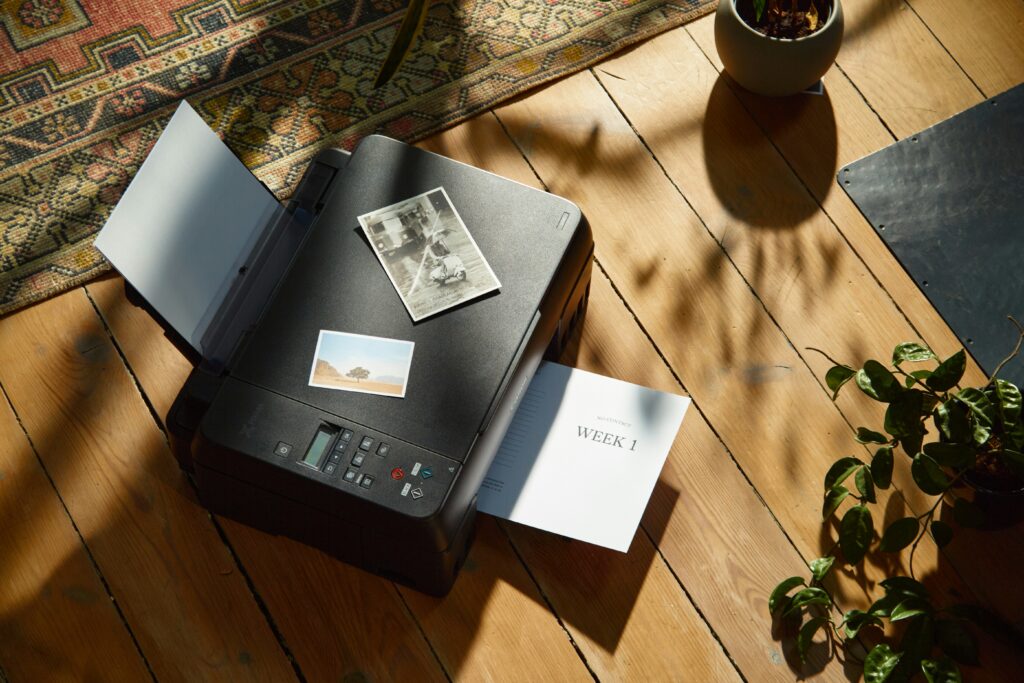
How to Print: A Simple Guide for Beginners
How to Print: A Simple Guide for Beginners
Printing documents may seem like a basic task, but if you’re new to using computers or printers, it can feel overwhelming. Whether you’re printing from a home office, school, or a local library, here’s a simple guide to get you started.
Step 1: Connect Your Printer
Make sure your printer is properly set up and connected to your computer. This can be done via USB cable or over Wi-Fi. Most modern printers come with setup instructions and software that help you connect easily.
Step 2: Load Paper and Check Ink
Open the paper tray and add clean, letter-sized paper (or the size you need). Make sure the ink or toner levels are sufficient. If the printer has a display, it usually shows low ink warnings.
Step 3: Open the Document
On your computer, open the document or image you want to print. This could be a Word file, PDF, email, or photo.
Step 4: Click Print
Go to File > Print or use the shortcut Ctrl + P (Windows) or Cmd + P (Mac). A print dialog box will appear. Here, you can choose your printer, number of copies, pages to print, and other settings.
Step 5: Confirm and Print
Click Print or OK to start the process. The printer will begin printing your document. If nothing happens, check the printer queue or make sure it’s not paused or offline.
Bonus Tip:
If you’re printing from a phone or tablet, download the printer’s mobile app or use AirPrint (for Apple devices) or Google Cloud Print (older Android support).
Printing doesn’t have to be complicated. With just a few steps, you’ll be ready to print anything from homework assignments to family photos.